
3D Printing for the Blind: My Tips for Getting Started Without Sight
I am Edis. I have been fully blind since I was two, and today I run a small 3D design and printing business. I design everything myself, I print it myself and I check every object with my hands before it goes to a customer.
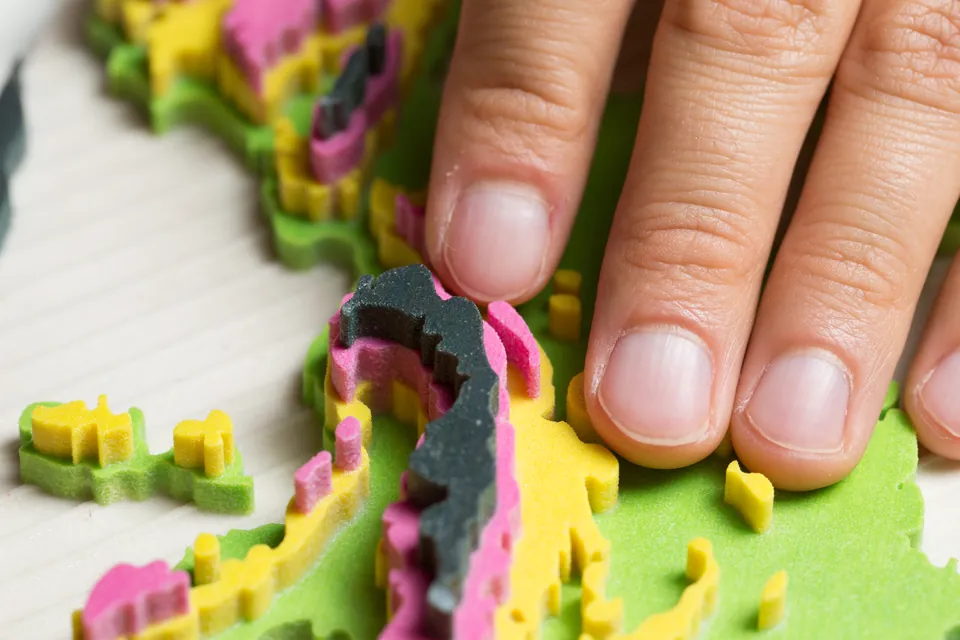
People often ask me whether 3D printing for the blind is actually possible, or whether it is just a nice idea. My honest answer is that it is very possible. It is not always easy, and some parts of the hobby were clearly designed by people who never imagined a blind person would use them. But with the right printer, the right software and a few habits, a blind or visually impaired person can design, slice, print and finish real objects.
This post is the guide I wish I had when I started. It is full of practical tips and tricks, not theory. If you want the bigger story of how I got into this, you can read Beyond Limits: Discovering 3D Printing Without Sight. Cults3D also published my story on their blog: Designing What I Cannot See: A Blind Maker's Journey with 3D Printing.
Why 3D printing matters so much when you are blind
Most of the world explains itself through pictures. Maps, floor plans, diagrams, product photos and drawings. If you cannot see them, you get a description at best, and a description is never the same as holding the thing.
A 3D printer changes that. It can turn almost anything into something you can feel. A map of your neighbourhood. A model of a building before it is built. A board game with tactile pieces. A label in Braille on exactly the thing you need to find.
That is why I started, and it is still why I print. Every object on my shop started as something I wanted to understand or use with my hands.
Tip 1: Start with what you want to make, not with the printer
It is tempting to begin by reading printer reviews. I would begin with a simple question instead: what do I actually want to hold in my hands six months from now?
Small tactile labels, games, replacement parts, models of buildings and practical household tools all ask for slightly different things. Once you know your projects, choosing the printer becomes much easier.
If you are still at the start, a small and simple goal is perfect. A keychain with your name in Braille, a nameplate or a little box teaches you more than a huge project that takes three days and fails on day two.
Tip 2: Choose a printer that does the fiddly work for you
For a blind user, the best printer is not the fastest or the biggest. It is the one that removes the tasks that depend on sight.
These are the features I would not compromise on:
- Automatic bed levelling and calibration. Manual levelling usually means looking at the gap between the nozzle and the bed. A printer that does this itself removes one of the biggest barriers.
- An enclosure, if your budget allows. It keeps the hot and moving parts away from your hands while you work by touch.
- Filament runout detection. The printer pauses instead of printing air when the spool runs empty.
- A way to control it without the touchscreen. An app, a web page or desktop software that works with your screen reader.
- Reliable filament loading. You will do it many times, so it needs to be repeatable by touch.
Today I mainly print on a Bambu Lab H2C with seven nozzles, and I can control everything on it without sight. I still use my Bambu Lab X1 Carbon every week, I have a Prusa CORE One, and I have also printed on a Creality K2 Plus. Owning and using several printers has taught me one thing clearly: automatic calibration and an enclosure take away more of the visual tasks than any other feature.
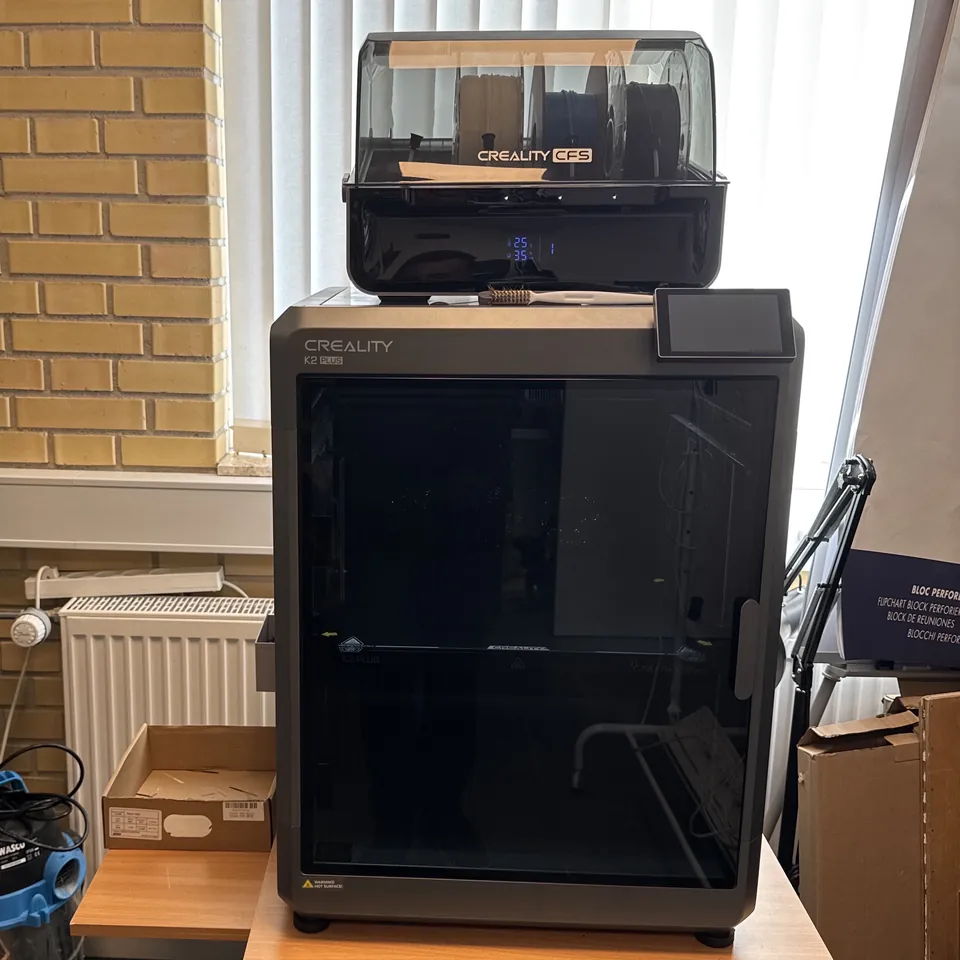
The H2C is extremely expensive, though, and you do not need anything like it to get started. For a blind beginner I would look at the Bambu Lab family in general. If you want a cheap place to start, the Bambu Lab A1 mini is a very good first printer. It has no enclosure, so take extra care around the hot nozzle and the moving bed, but it calibrates itself and is easy to live with.
I have also learned the hard way that an expensive printer is not automatically a good printer for a blind user. You can read why in my experience with the Prusa XL as a fully blind business owner.
If you want the full buying guide, I wrote one: Choosing Your First 3D Printer: A Blind Maker's Guide to Not Buying a Fancy Paperweight. And if you are unsure whether you even want a filament printer, my comparison of FDM, SLA, SLS and resin printing explains the differences in plain words. My short advice for beginners is to start with filament (FDM). Resin involves liquid chemicals, gloves and washing steps that are harder to do safely without sight.
Tip 3: Solve the software problem first
This is the part nobody warns you about. The printer is often not the biggest barrier. The software is.
To print anything you need a slicer. The slicer turns a 3D model into instructions the printer understands. The popular slicers, like Bambu Studio, PrusaSlicer and OrcaSlicer, draw most of their own screens, and screen readers cannot read most of them. For years I worked around that with tricks, memorised key presses and sometimes sighted help.
In the end I built my own solution. AccessSlice is a free, open source program for Windows that lets you prepare, slice and send prints with a screen reader from start to finish. It does not replace your slicer. It uses your slicer's own engine behind the scenes, but gives you simple pages with real headings, labelled fields and buttons, and it tells you the result in words: print time, filament used and any warnings. I test it with NVDA, and JAWS and Narrator work the same way.

If you want to know exactly how it works, the AccessSlice guide walks you through every step. The source code is on GitHub, and if you find a bug, I would love to hear about it there.
If you do not have a screen reader yet, NVDA is free for Windows and is the one I recommend to most beginners.
Tip 4: Learn to design with code, not with a mouse
Most 3D design programs expect you to drag shapes around on a screen. That does not work well for me, and it probably will not work well for you either.
OpenSCAD is different. You describe your object in text. A cube that is 20 millimetres on each side is one line. A hole through it is another line. Because it is all text, your screen reader reads it like any other document, and you always know the exact size of everything.
Almost everything I sell is designed this way, from tactile maps to Braille games. If you want to start, I wrote a long beginner guide: Learn OpenSCAD: The Ultimate Guide to Accessible 3D Design for Blind and Sighted Users.
You do not have to design anything at the beginning, though. Millions of ready-made models already exist.
Tip 5: Print other people's models first
Before you design your own objects, print a few that already work. That way you learn the printer without wondering whether the problem is your design or your settings.
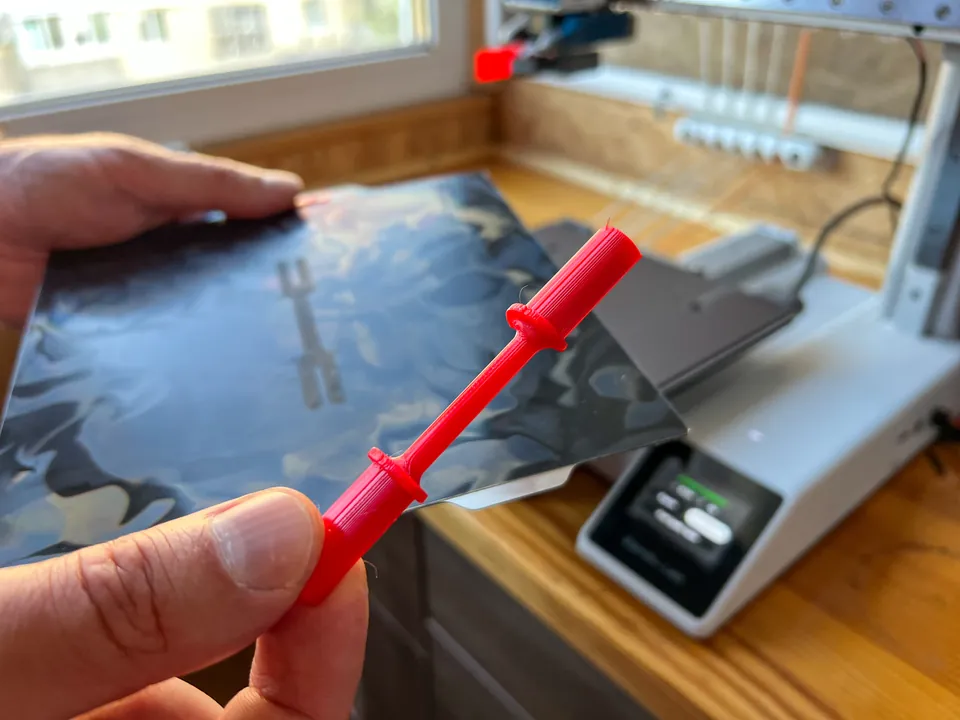
Good places to find models:
- Cults3D, where I publish my own designs too
- Printables
- Thingiverse
- The free and paid models on my own site, where every model has a written description so you know what you are printing
When you choose a model, read the description carefully. Look for words like "print in place", "no supports" and "parametric". Print in place means the moving parts come off the printer already assembled. No supports means you do not have to break away extra plastic afterwards, which can be hard to do by touch without damaging the object.
My latest design on Cults3D is a good example of a beginner friendly print. The ORBIT multi-sensory planetary gear fidget spinner prints in one piece, already assembled, with Braille numbers, tactile caps and a click you can feel and hear as it turns. You can also find it as a printed fidget spinner in my shop if you would rather have one ready made, or download the fidget spinner file from my site.
Other print in place designs of mine that work well as first prints are the tactile tic tac toe game and the castle dice tower.
Tip 6: Use your ears, nose and hands
You cannot see the print, but you can notice a lot more than you think.
Listen. After a few prints you will know what your printer sounds like when everything is normal. A repeated clicking from the extruder often means the filament is not feeding properly. A sudden change in rhythm, or a scraping sound, is worth checking. Many printers also beep or send a notification when something goes wrong.
Smell. Melting PLA smells faintly sweet. A sharp or burning smell is a reason to stop the printer and check it.
Touch, carefully. When a print is finished and the bed has cooled, feel the first layer. It should be flat and stuck evenly to the bed. If it has lifted at the corners, you have learned something about bed adhesion. If you find a tangle of thin loose strands, the print came loose during printing.
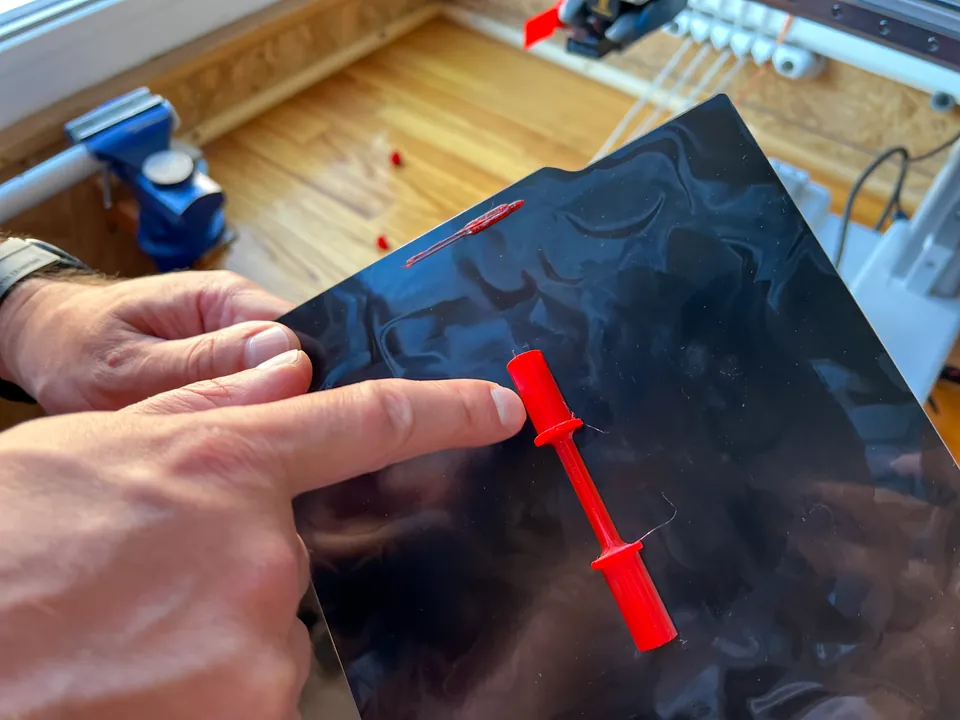
Feel every finished print. This is where blind makers actually have an advantage. Your hands are very good quality control. You will notice rough walls, missing details, uneven Braille and weak spots that a quick look might miss.
Tip 7: Get a second pair of eyes when you need it
Being independent does not mean doing everything alone. It means choosing when to ask for help.
Apps like Be My Eyes and Seeing AI can describe a printer screen, read an error message or tell you the colour of a spool. Many printers also have a camera, so a sighted friend can check a print from far away.
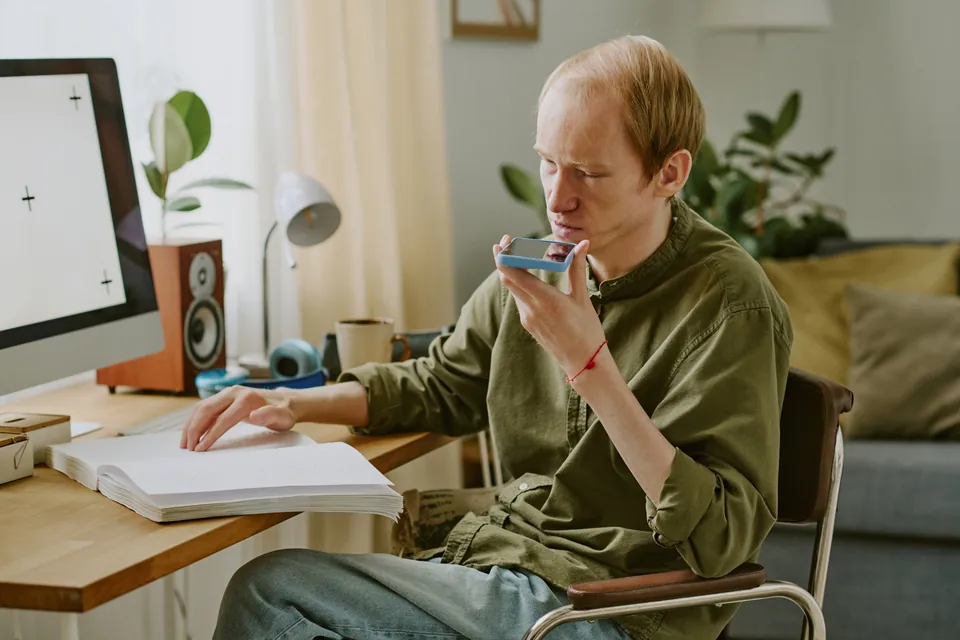
I still ask sighted people for help sometimes, especially for colours and for anything that only shows up visually. That is fine. The goal is not to prove anything. The goal is to make things.
Tip 8: Organise your filament so you can find it by touch
Filament spools all feel more or less the same. If you mix them up, you will print in the wrong colour or the wrong material.
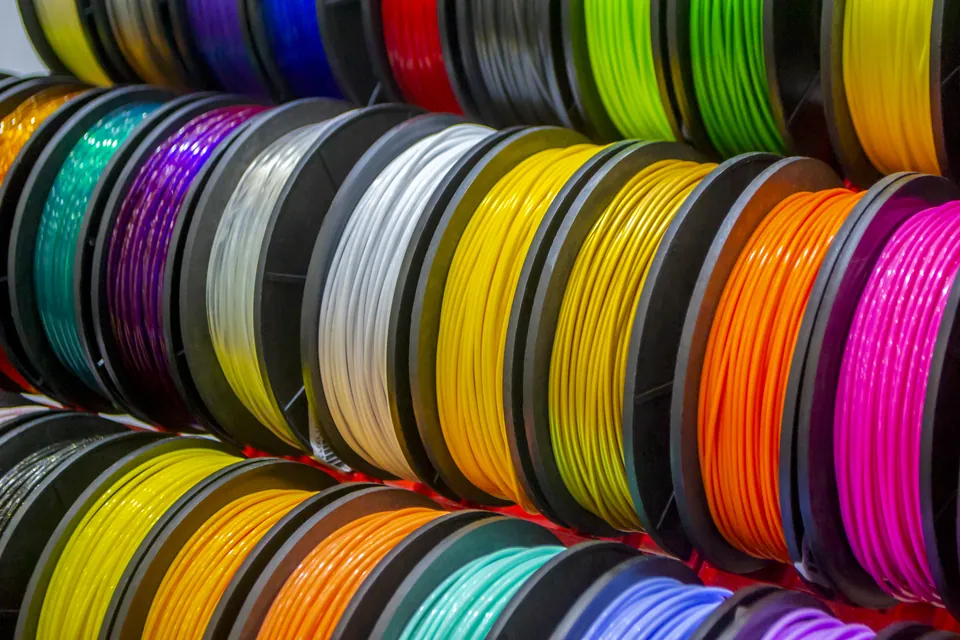
A few things that help me:
- Keep each material in its own box or shelf, always in the same place.
- Put a tactile or Braille label on each spool or box. A strip of tape, a rubber band or a printed tag works too.
- Write down which spool is loaded in which slot, if your printer has several.
- Keep filament dry in sealed boxes. Wet filament prints badly, and you will hear and feel it as small pops and a rough surface.
If you are going to print your own labels, that is also a great first project in OpenSCAD.
Tip 9: Safety first, always
A 3D printer is safe when you respect it. Without sight, a few rules matter even more:
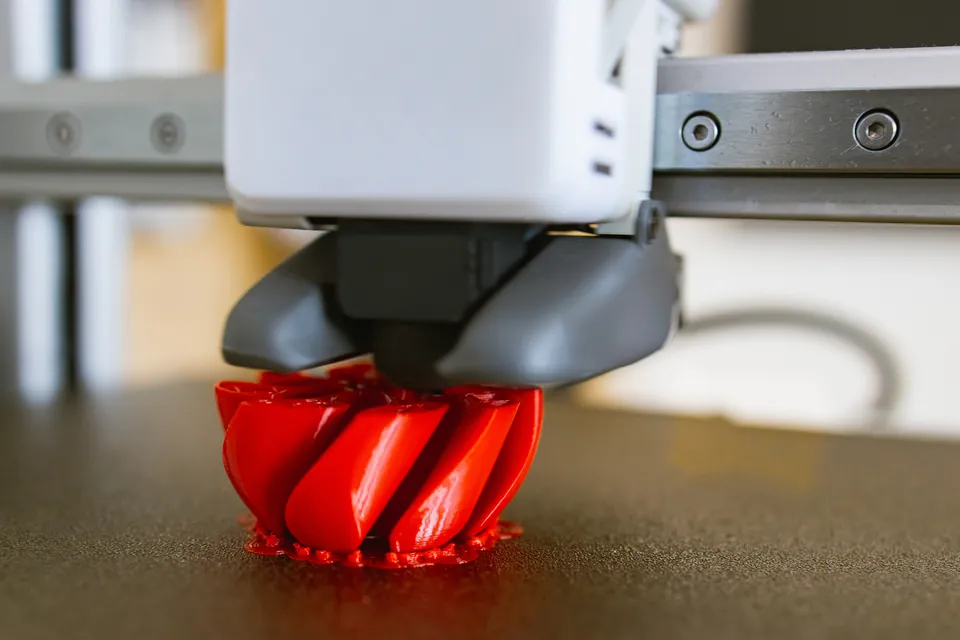
- The nozzle runs at around 200 degrees Celsius or more. Never touch it while the printer is on.
- Let the bed and the print cool down before you remove anything.
- Keep long hair, sleeves and fingers away from the moving parts while it prints.
- Print in a room with fresh air, and choose an enclosed printer if you can.
- Learn where the power switch is and how to stop a print quickly, before you start your first one.
- Never leave a new printer running alone until you trust it.
Tip 10: Accept the failed prints
Every maker has a box of failed prints. Mine is large.
A failed print is information. If it came loose from the bed, it tells you about adhesion. If it broke, it tells you about wall thickness or material. If the Braille was too small to read, it tells you how big Braille has to be when it is printed. I wrote about that last part in How to Make 3D Prints Accessible: A Blind Maker's Guide to Designing for Everyone.
The more you print, the more your hands learn what a good print feels like.
Not ready to buy a printer? You can still get started
You do not need your own printer to start using 3D printing.
If you already have a file you want printed, you can request a quote, and I will print it for you. If you have an idea but no file, you can send me a design request, and I will design it in OpenSCAD and make it tactile and accessible from the start. That can be a tactile map, a floor plan, a Braille sign or something completely different.
You can also see the services I offer to organisations, schools and museums, or simply browse the shop to feel what a well made tactile print can be.
Frequently asked questions
Can a blind person use a 3D printer?
Yes. I am fully blind and print every day for my business. The keys are a printer with automatic calibration, software that works with a screen reader, and a few safe habits around heat and moving parts.
What is the best 3D printer for a blind beginner?
For most blind beginners I would recommend a printer from the Bambu Lab family, because they calibrate themselves and can be controlled from an app or from your computer. If you want a cheap place to start, the Bambu Lab A1 mini is a very good choice. It is small and has no enclosure, so be extra careful with the hot nozzle and the moving bed. My own H2C is extremely expensive, and you absolutely do not need anything like it to begin. My first printer guide goes into more detail.
Can you use a slicer with a screen reader?
Most mainstream slicers are hard or impossible to use with a screen reader. That is why I built AccessSlice, a free and open source program that makes slicing work with NVDA, JAWS and Narrator.
Which 3D design software is accessible for blind users?
OpenSCAD works best for me, because you design with text instead of a mouse. Your screen reader reads the code like any document. My OpenSCAD guide shows you how to start.
Is 3D printing safe for visually impaired people?
Yes, if you follow a few rules. Use an enclosed printer, never touch the nozzle while it is on, let prints cool before removing them and learn how to stop the printer before you start.
Stay in touch
I publish new tactile designs, free models and tips like these regularly. If you want to hear about them first, sign up for my newsletter. New subscribers get a personal code for 10% off one order in the web shop.
And if you have a question about getting started, I would genuinely like to hear it. Write to me. I answer every message myself.
Comments
Leave a comment